

16th-Feb-22, 02:35 PM
As I said in the opening post, I spent quite a lot of time experimenting with the Magic ARC App to find the settings that work on my track. I hope this will serve as a good basis for your own experimentation to fit the GT format to your own track and requirements. What I'll explain here is a one-hour race - but that is easily scaled up to the two- or three-hour race lengths also used by the British GT Championship.
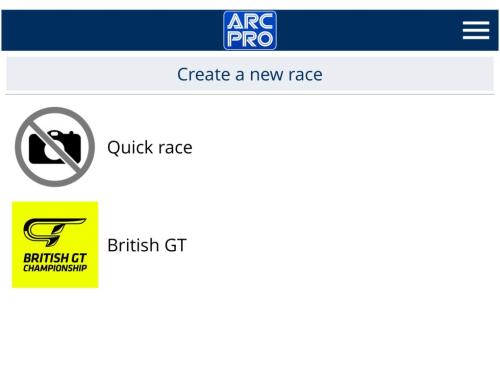
The first thing is to create and name a new race in the main menu. I’ve used the old British GT Championship logo – a bit of a glitchy process to upload, but worth it. Once it’s set up, the GT race remains in the main menu. Some of the settings we’re interested in are the Race menu – important things like the race length, Yellow Flag options, Start Mode, Race End, plus the simulations for Fuel, Tyres, KERS and Weather. Compared to the Scalextric ARC app, all these have more complexity and can be customised quite extensively. The Magic ARC App can only run races up to 5 hours long. If you want a longer race, you’d need to run several ‘segments’ – for example a 24-hour race would be six 4-hour races.
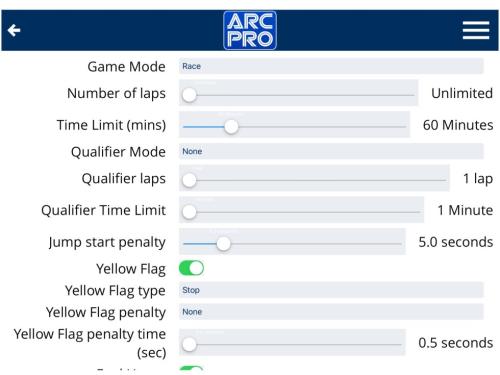
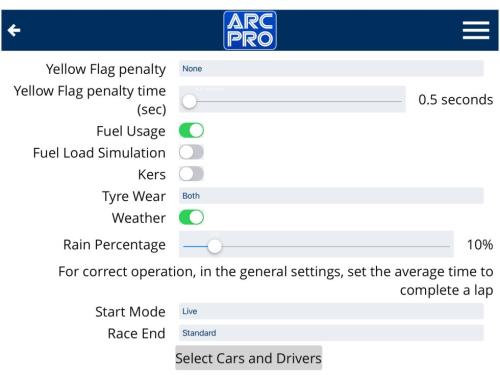
You’ll notice in the two images above, that I’ve chosen not to use the Fuel Load Simulation. This simulates a ‘sluggish’ car with a heavy fuel load. With a short race, this works well, but in this one-hour race, the effect continues too long – and there’s no way to customise the simulation. I prefer not to use it. I have chosen weather – which is great fun. If the weather changes, cars will experience a power drop and inconsistent handling – a driver can choose to stay out or can pit for new tyres to return power and handling to normal. The amount of rain in the race can be set – but exactly when the rain falls is random. Ideally, toss a coin to decide if the Weather simulation is used or not and – if it is – use dice or a random number generator to set the percentage.
You’ll notice I haven’t used the Qualifier Mode in the race menu. I usually set up and run practice and qualifying sessions separately. The grid order doesn’t matter very much and qualifying isn’t entirely necessary – but it can be rather exciting!
Not all the settings are in the Race menu, there’s also plenty in the General Configuration menu...
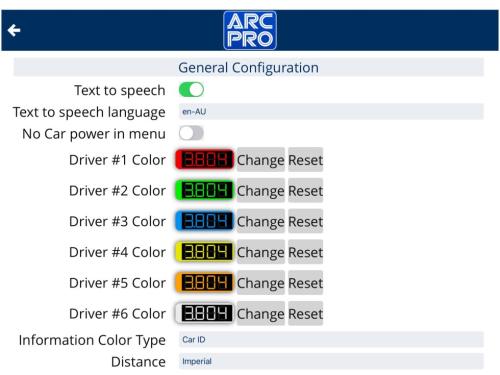
These are shared options for all races and cannot be saved specifically to our British GT race. The first thing to do is choose a voice (that’s a lot of fun) for the text to speech effects – and made sure the Driver Colors match the colours on the powerbase and the controllers. Then there are general settings about the track, lap times and how the drivers (or teams) are displayed on the race screen...
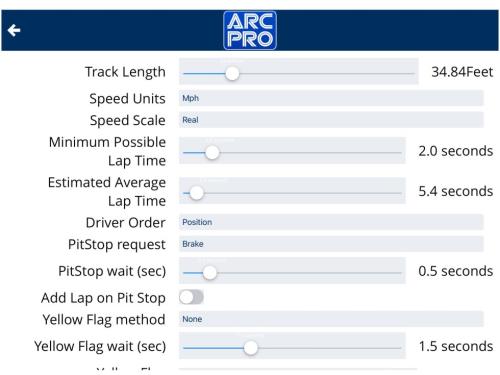
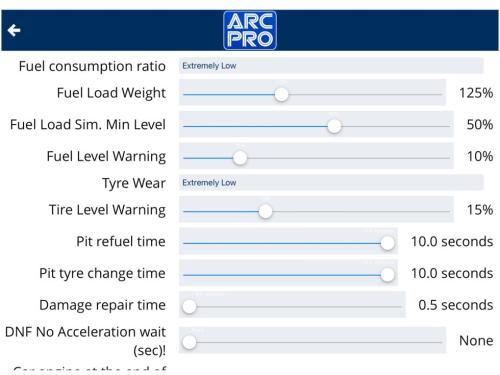
However, there are some settings we want to tweak for our GT simulation – the longest possible pit stop time (10 seconds) and the ‘Extremely Low’ option for both Fuel Consumption and Tyre Wear. Because of the extremely low settings, I’ve set the Tyre and Fuel Level Warnings to low percentages – to get a timely reminder to pit. Tyres do ‘go off’ and effect handling, so pitting at 15 or 20% is wise – you can leave Fuel Level to a couple of percent before pitting. If either go to zero, the car will not count laps.
The final settings are for the cars and the drivers – or teams in the GT format...
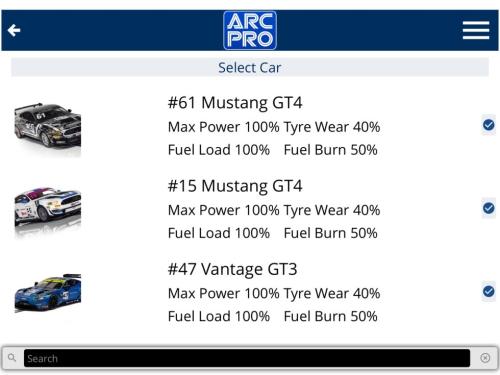
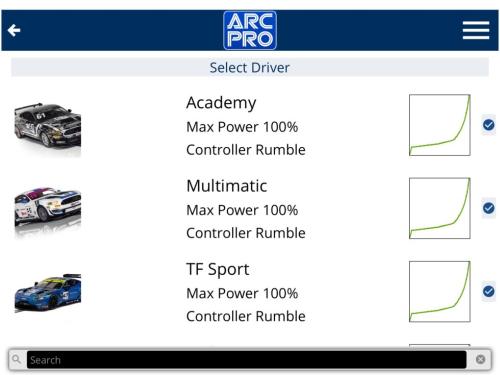
Adding the images is a little glitchy, but helpful for the race screen. From these menus, you can set the Max Power, Tyre Wear, Fuel Load and Fuel Burn settings, which work alongside the settings in the General Configuration menu. I’ve tweaked these settings to give a pit stop about every 15 minutes – about enough time for a decent driving stint and just before my hand starts to cramp from using the ARC controller. I can race for 60, 90 or even 120 minutes with Slot.it controller – so that might be a nice upgrade if you’re considering some serious endurance racing with ARC Pro. In the Driver menu, you can choose controller features – rumble is always useful to prompt a pit stop, although not available with the Slot.it controller. I’ve set the Throttle Curve to the soft ‘Profile A’ which is good for non-mag driving.
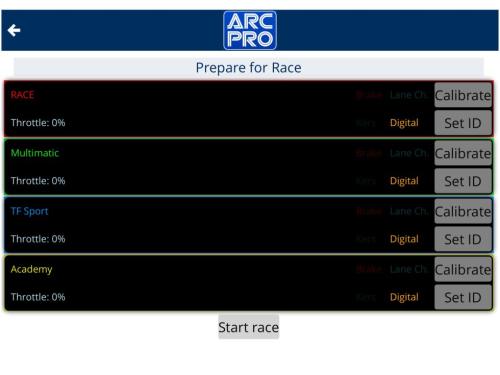
The final ‘Prepare for Race’ screen allows you to calibrate the low speed for each car – and to connect each car to the powerbase using the Set ID button. This bypasses and streamlines the standard car connection process of pushing buttons on the ARC powerbase...
In terms of running the race, there's plenty you can do in advance to train less experienced drivers, enforce ‘No Contact’ racing and marshalling crashed cars. First and foremost, Scalextric racing should be fun – but that fun and enjoyment is helped by some basic rules and organisation. At our digital club we call this our 'Digital Driving School' and everyone gets a re-cap at the start of each event.
With four cars and eight drivers, one of the non-driving team mates acts as the ‘Race Controller’ and the other three non-drivers ‘marshal’ a part of the circuit – that means replacing cars when they crash and calling for a Yellow Flag if there is a problem with the track, barriers or bridge supports. The cars stop under a yellow flag, but the time continues to count down – a bit like a Full Course Yellow. The first job for the Race Controller is to start the race and hold any cars serving a success penalty in the pits. The Race Controller also announces the driver change windows and notes down how long each driver has raced. When it’s their turn to drive, they hand over Race Control duties to their team mate. Likewise with the marshals.
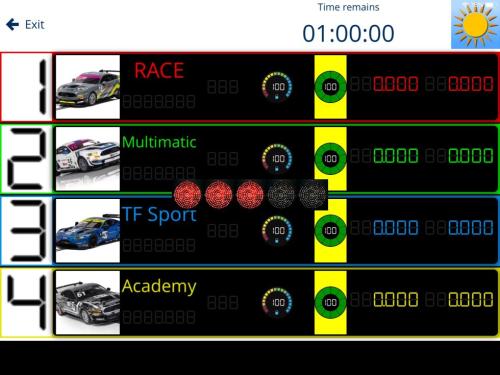
The Magic race screen is nicely laid out – you and your team mate can keep an eye on progress, fastest lap time, how much fuel is left and how far the tyres have worn. I think it works best if the drivers concentrate on driving and the non-driving team mate makes strategy calls – that’s what happens in real GT racing. With pit stops scheduled for approximately 15 minutes, the team can change drivers after 15, 30 and 45 minutes – as long as each driver races for around 30 minutes in total. That gives options – maybe the ‘Am’ does the first and last 15 minutes and the ‘Pro’ driver has a straight 30 minute stint in the middle.
The more you play with the Magic ARC App, the more you can mould its settings to the GT format that suits your track, your cars and the abilities of your racing buddies. Remember – it’s great to simulate a real-life racing series, but there are always some compromises necessary to maximise the fun.
I hope you enjoyed this introduction to the Magic app and it has inspired you to re-create your own favourite races and series. A version of this article originally appeared on the Jadlam blog last year, but I have reworked and updated it for SlotRacer Online.
The first thing is to create and name a new race in the main menu. I’ve used the old British GT Championship logo – a bit of a glitchy process to upload, but worth it. Once it’s set up, the GT race remains in the main menu. Some of the settings we’re interested in are the Race menu – important things like the race length, Yellow Flag options, Start Mode, Race End, plus the simulations for Fuel, Tyres, KERS and Weather. Compared to the Scalextric ARC app, all these have more complexity and can be customised quite extensively. The Magic ARC App can only run races up to 5 hours long. If you want a longer race, you’d need to run several ‘segments’ – for example a 24-hour race would be six 4-hour races.
You’ll notice in the two images above, that I’ve chosen not to use the Fuel Load Simulation. This simulates a ‘sluggish’ car with a heavy fuel load. With a short race, this works well, but in this one-hour race, the effect continues too long – and there’s no way to customise the simulation. I prefer not to use it. I have chosen weather – which is great fun. If the weather changes, cars will experience a power drop and inconsistent handling – a driver can choose to stay out or can pit for new tyres to return power and handling to normal. The amount of rain in the race can be set – but exactly when the rain falls is random. Ideally, toss a coin to decide if the Weather simulation is used or not and – if it is – use dice or a random number generator to set the percentage.
You’ll notice I haven’t used the Qualifier Mode in the race menu. I usually set up and run practice and qualifying sessions separately. The grid order doesn’t matter very much and qualifying isn’t entirely necessary – but it can be rather exciting!
Not all the settings are in the Race menu, there’s also plenty in the General Configuration menu...
These are shared options for all races and cannot be saved specifically to our British GT race. The first thing to do is choose a voice (that’s a lot of fun) for the text to speech effects – and made sure the Driver Colors match the colours on the powerbase and the controllers. Then there are general settings about the track, lap times and how the drivers (or teams) are displayed on the race screen...
However, there are some settings we want to tweak for our GT simulation – the longest possible pit stop time (10 seconds) and the ‘Extremely Low’ option for both Fuel Consumption and Tyre Wear. Because of the extremely low settings, I’ve set the Tyre and Fuel Level Warnings to low percentages – to get a timely reminder to pit. Tyres do ‘go off’ and effect handling, so pitting at 15 or 20% is wise – you can leave Fuel Level to a couple of percent before pitting. If either go to zero, the car will not count laps.
The final settings are for the cars and the drivers – or teams in the GT format...
Adding the images is a little glitchy, but helpful for the race screen. From these menus, you can set the Max Power, Tyre Wear, Fuel Load and Fuel Burn settings, which work alongside the settings in the General Configuration menu. I’ve tweaked these settings to give a pit stop about every 15 minutes – about enough time for a decent driving stint and just before my hand starts to cramp from using the ARC controller. I can race for 60, 90 or even 120 minutes with Slot.it controller – so that might be a nice upgrade if you’re considering some serious endurance racing with ARC Pro. In the Driver menu, you can choose controller features – rumble is always useful to prompt a pit stop, although not available with the Slot.it controller. I’ve set the Throttle Curve to the soft ‘Profile A’ which is good for non-mag driving.
The final ‘Prepare for Race’ screen allows you to calibrate the low speed for each car – and to connect each car to the powerbase using the Set ID button. This bypasses and streamlines the standard car connection process of pushing buttons on the ARC powerbase...
In terms of running the race, there's plenty you can do in advance to train less experienced drivers, enforce ‘No Contact’ racing and marshalling crashed cars. First and foremost, Scalextric racing should be fun – but that fun and enjoyment is helped by some basic rules and organisation. At our digital club we call this our 'Digital Driving School' and everyone gets a re-cap at the start of each event.
With four cars and eight drivers, one of the non-driving team mates acts as the ‘Race Controller’ and the other three non-drivers ‘marshal’ a part of the circuit – that means replacing cars when they crash and calling for a Yellow Flag if there is a problem with the track, barriers or bridge supports. The cars stop under a yellow flag, but the time continues to count down – a bit like a Full Course Yellow. The first job for the Race Controller is to start the race and hold any cars serving a success penalty in the pits. The Race Controller also announces the driver change windows and notes down how long each driver has raced. When it’s their turn to drive, they hand over Race Control duties to their team mate. Likewise with the marshals.
The Magic race screen is nicely laid out – you and your team mate can keep an eye on progress, fastest lap time, how much fuel is left and how far the tyres have worn. I think it works best if the drivers concentrate on driving and the non-driving team mate makes strategy calls – that’s what happens in real GT racing. With pit stops scheduled for approximately 15 minutes, the team can change drivers after 15, 30 and 45 minutes – as long as each driver races for around 30 minutes in total. That gives options – maybe the ‘Am’ does the first and last 15 minutes and the ‘Pro’ driver has a straight 30 minute stint in the middle.
The more you play with the Magic ARC App, the more you can mould its settings to the GT format that suits your track, your cars and the abilities of your racing buddies. Remember – it’s great to simulate a real-life racing series, but there are always some compromises necessary to maximise the fun.
I hope you enjoyed this introduction to the Magic app and it has inspired you to re-create your own favourite races and series. A version of this article originally appeared on the Jadlam blog last year, but I have reworked and updated it for SlotRacer Online.
![[+]](https://slotracer.online/community/images/bootbb/collapse_collapsed.png)